



Google Maps has over one billion users per month, but few really know how much the app is capable of. Among many useful functions that the application is not aware of, there is such an option as “dropping a pin.”
If you wanted to send someone your current location near the entrance to the park, indicate a certain trail without any address, or determine a specific place of pick up where you were always mistaken by various services for ordering cars, then with a “dropped pin,” you will be able to do it all in just a few seconds.
In this article, I will give you detailed information about how to drop a pin on Google Maps on any gadget. Besides, you will find out how to use the feature in other ways.
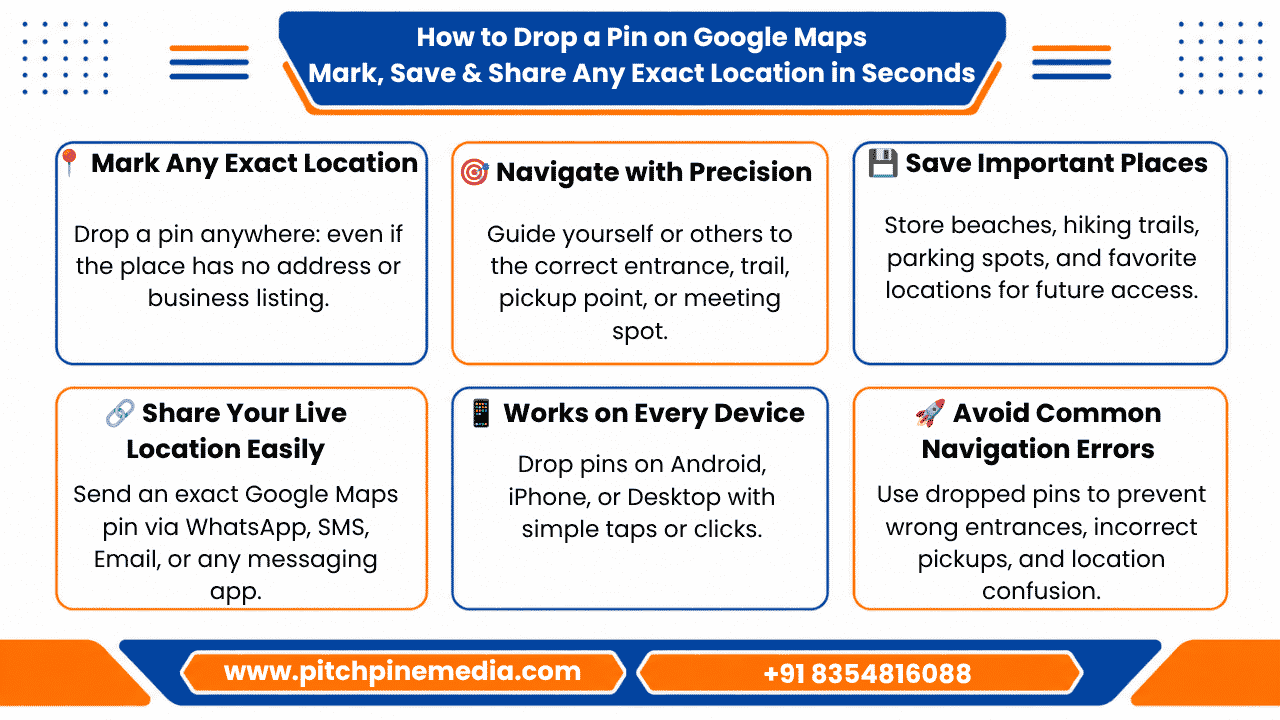
What Does “Dropping a Pin” Actually Mean?
Before describing the steps, it is better to define what dropping a pin means because this feature is different from the one when a person searches for some place.
In case the user wants to find a business or an address in Google Maps, then the app finds the listing and provides all the information connected with it. However, dropping a pin is another thing because in such a case the person himself/herself marks the point on the map and tells Google Maps that this very place matters for him/her.
It helps in cases such as:
- To mark the entrance of the park rather than the parking lot provided by default.
- To share the exact place where you are when you are not at the listed address.
- To save the point of trail or beach or any other point which does not have its listing.
- To set an accurate point of picking up/dropping off someplace when using a ride service.
- To navigate to a certain building in a large complex where navigation takes the person to the wrong entrance.
Once people understand how to drop a pin in Google Maps, they will use it more often than they think now.
How to Drop a Pin on Google Maps on Android
Step 1: Launch Google Maps Application
Open the Google Maps app installed on your Android smartphone. Ensure you are in the default map view, and not in the turn-by-turn navigation option.
Step 2: Navigate to the Right Location
Use the search bar provided on the application to reach a nearby landmark, or use the scroll and pinch options to zoom in or out until you are able to pinpoint the right area on the map. The higher you zoom in, the more accurate you can be with the placement of your pin.
Step 3: Press and Hold the Right Area
Press your finger down on the exact point of the map where you wish to place your pin and hold it there for roughly one second without releasing the touch.
What you’ll get: A pin drops onto the map from your finger, and a bottom card comes up displaying coordinates, and a nearby address if available.
Step 4: Read the Bottom Card
This card provides you with information regarding the GPS coordinates of your placed pin, and a street address, if available. From this card you will have a number of options at hand:
- Directions – Get navigation instructions to that exact location.
- Share – Share your marked location with anyone using WhatsApp, SMS or email through Gmail.
- Save – Save your marked location on a list in Google Maps.
- Label – Mark this specific place on the map with any custom name you wish to give it.
- Send to Phone – Helpful if you have been navigating from the website and wish to continue from your mobile device.
Step 5: Move the Pin (Optional)
Should you miss your target and the pin not be placed in the exact place you wished it to be, just move it by dragging it to the proper location. You will see the bottom card update the location information in real-time as you do this.
Tip: Should you be tapping into businesses and places in the map instead of the open spaces between them, try zooming in even further.
How to Drop a Pin on Google Maps on iPhone
Total time: under 30 seconds
The iPhone process is nearly identical to Android, with one practical difference worth knowing.
Step 1 Open Google Maps
Open the Google Maps app on your iPhone. It’s a free download from the App Store if you don’t have it yet.
Step 2 Navigate to Your Location
Search for a nearby address or landmark to orient yourself, then zoom in toward the specific point you want to mark. Pinch outward to zoom in closer.
Step 3 Tap and Hold
Touch and hold the screen at the exact location you want to pin. This is a standard press-and-hold, not a 3D Touch or force press. Hold for about one second until the pin appears.
What you’ll see: A red pin drops, and a card slides up from the bottom showing the address or coordinates.
Step 4 Use the Options
From the bottom card, tap:
- Directions to navigate to that point
- Share to send the location link via any app
- Save to add it to a Google Maps list
- Scroll the card upward to reveal Add label, Add to list, and other options
Step 5 Adjust If Needed
Tap and drag the pin to fine-tune its position. The bottom card updates live as you drag.
iPhone-specific tip: If tapping and holding opens a business card or search result instead of dropping a pin, it means you’ve tapped on an existing point of interest. Zoom in more and try again on blank map space or try slightly moving your finger to an area without an existing marker.
How to Drop a Pin on Google Maps on Desktop
Works in any browser Chrome, Firefox, Safari, Edge
Desktop Google Maps works a little differently, and actually makes pin-dropping even faster.
Step 1 Open Google Maps in Your Browser
Go to maps.google.com. No app needed; it works entirely in the browser.
Step 2 Find Your Location
Type a nearby address or landmark into the search bar to get to the right area, then zoom in using the scroll wheel on your mouse or the + and – buttons on the map.
Step 3 Click Once on the Map
On the desktop, a single left click on any empty point on the map drops a pin immediately. No holding required.
What you’ll see: A small pin appears at your click point, and a panel opens at the bottom of the screen showing the coordinates and any associated address.
Step 4 Explore the Bottom Panel
The desktop panel gives you:
- Directions Click to plan a route to that point
- Share Generates a shareable link you can copy and paste anywhere
- Save Saves the location to your Google account lists
- Nearby Shows businesses, restaurants, and other points of interest near your pin
Step 5 Right-Click for More Options
Right-clicking anywhere on the map brings up a small menu that includes “What’s here?” clicking this shows you the precise GPS coordinates of that exact point and drops a pin there. This is useful when you want the coordinates of a location without having to guess where to click.
Pro tip: If you drop a pin on desktop, you can click Send to your phone in the bottom panel to instantly push the location to your Google Maps app on mobile no copy-pasting required.
How to Share a Dropped Pin on Google Maps
Sharing a pin is one of the most useful things you can do with it and the link you share works on every device.
On Android or iPhone:
- Drop the pin using the steps above
- Tap Share in the bottom card
- Choose WhatsApp, Messages, Gmail, or tap Copy link to paste it anywhere
- The recipient opens the link and sees exactly where the pin is; no Google Maps account required
On Desktop:
- Drop the pin with a single click
- Click Share in the bottom panel
- Click Copy link and paste it into a message, email, or chat
The link works regardless of device. Someone on an iPhone can open a pin link shared from a desktop. Someone without Google Maps installed can still see the location in their browser.
How to Drop a Pin at Your Current Location
In case you want to drop a pin not somewhere else but at your current location:
For mobile users: Click on the blue dot showing your current location and the card at the bottom will pop up, which allows you to Share or Add Label to save your current location.
For desktop users: You can click on the blue dot on the map (in case you have granted permission to track your location) or use the My Location button in the Directions menu.
Common Mistakes (And How to Avoid Them)
Accidentally tapping a business instead of the map Fix: Zoom in more. Existing points of interest are harder to accidentally tap when you’re zoomed in closer to the area you want.
The pin lands in the wrong spot Fix: After dropping, tap and drag the pin to the exact position. You don’t need to start over.
Sharing the pin but the recipient sees a different location Fix: Make sure you share the pin link, not a screenshot or a manually typed address. The link contains the exact GPS coordinates.
Pin disappears before you can use it Fix: If you tap elsewhere on the map, the temporary pin disappears. Save it to a list first if you want to keep it.
Why Google Maps Accuracy Matters for Businesses
If you run a local business, how your location appears on Google Maps directly affects whether customers can find you. A pin placed at the wrong entrance, an incomplete Google Business Profile, or a navigation route that sends people to the back of the building instead of the front these small problems quietly cost foot traffic every day.
Getting your Google Maps presence right means more than just being listed. It means appearing accurately, loading correctly, and routing customers exactly where you want them. Our Local SEO services and Google Maps optimization at Pitch Pine Media help businesses do exactly that with verified listings, accurate location data, and the local visibility that turns map searches into actual visits.
Frequently Asked Questions
Q. Can I drop multiple pins on Google Maps at once?
Ans: Not with the standard app; Google Maps only holds one temporary dropped pin at a time. However, you can save each pin to a list as you go, and all saved pins remain visible on your map simultaneously.
Does a dropped pin work without the internet? Dropping a pin requires an internet connection. However, if you save the location while online, it will remain in your Saved places even when offline.
Q. Can I drop a pin in Google Maps on Apple Maps by mistake?
Ans: These are separate apps. Dropping a pin in Google Maps does not affect Apple Maps. Make sure you have the Google Maps app open before following these steps.
Q. How accurate is a dropped pin?
Ans: A dropped pin is GPS-accurate to the point you tapped on the map typically within a few meters. The accuracy depends more on how carefully you placed the pin than on any technical limitation.
Q. Can I share a dropped pin with someone who doesn’t have Google Maps?
Ans: Yes. The share link opens in any browser, so the recipient can see the pinned location on Google Maps in their browser without installing the app.